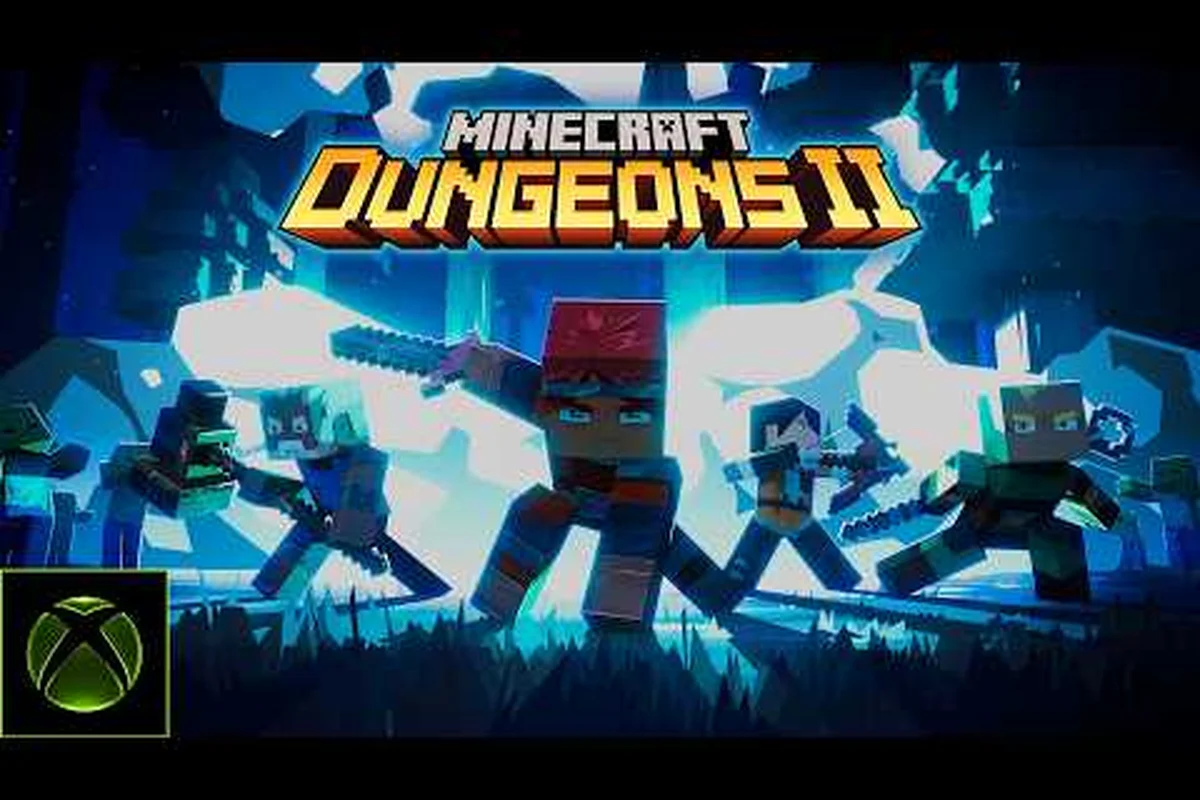
Minecraft Dungeons II local co-op brings the classic couch multiplayer experience back, letting you and up to three friends share one screen and one adventure without needing an internet connection. This matters because the sequel finally delivers the shared-screen experience that made the original a party favorite, while adding new mechanics that change how you coordinate with your team. Whether you are planning a weekend gaming session or just want to know if your setup will work, here is everything you need to get started.
Local Co-op Setup: What You Need to Start
Four-Player Cap: Local, Online, and Matchmaking Ceilings
Xbox Wire confirms up to four-player co-op across local, online, and matchmaking modes — the same four-slot ceiling applies to all three. Local co-op runs all four players on one console with shared/split-screen, while online and matchmaking fill the same four slots with remote players. The practical difference: local co-op avoids latency and connection drops entirely, whereas matchmaking is the fallback when your group is short a player, letting a random fourth join your run mid-session.
Talisman and Armor Loadouts for Couch Co-op Roles
Minecraft Dungeons II splits armor into four individual pieces and adds three talisman slots for passive effects alongside three artifact slots — a major shift from the first game's single armor slot. Pre-orders include two hero skins, a Twisted cape, and a Twisted chicken pet. The Tornado Blade, enchantable at the Enchantsmith, pairs well with attack-speed talismans. r/MinecraftDungeons theorycrafting suggests talisman builds will define co-op roles — one player stacking defensive armor pieces, another loading damage talismans for a dedicated DPS lane.
Setting up Minecraft Dungeons II local co-op is refreshingly simple, but a few requirements determine whether your couch session will run smoothly. According to the official Xbox Wire announcement, the game supports up to four-player co-op across local, online, and matchmaking modes, which means the sequel treats local play as a first-class citizen rather than an afterthought.
Local co-op works by having all players share the same screen, so you do not need multiple consoles or copies of the game. The host launches the game, selects a save file, and then the other players join from the character select screen using their own controllers. Each player picks their own character and loadout, so you can mix melee brawlers with ranged specialists right from the start.
Here is what you need for a successful couch session: one controller per player — up to four for full minecraft dungeons ii 4 player co-op — a display large enough for split-screen visibility, and the same game version on every device. Note that couch co-op requires each player to sign in with their own profile, and minecraft dungeons ii crossplay between platforms only applies to online sessions, not split-screen local play.
-
A console or PC with Minecraft Dungeons II installed (one copy is enough for local play)
-
One controller per player, up to four total
-
A display large enough for everyone to see their character clearly
-
Optional: a stable internet connection for updates and cloud saves
The shared-screen approach means everyone sees the same view, which is great for coordination but requires some communication when exploring different areas. The game does not use split-screen in the traditional sense; instead, the camera pulls back to keep all players in frame, similar to the first game but with improved zoom logic that handles the new jump mechanic better.
For PC players, the Steam store page confirms that shared and split-screen co-op is supported alongside online play. This is notable because many PC action RPGs skip local co-op entirely, so having it here is a welcome addition. Steam users also get Remote Play Together, which lets one copy of the game host remote friends in local mode, effectively turning online friends into virtual couch partners.
Local vs. Online Co-op: Which Mode Fits Your Group
Choosing between local and online co-op depends on your group's situation, and Minecraft Dungeons II handles both well. Local co-op is ideal for same-room sessions, while online co-op is better for friends who live elsewhere. The game supports both simultaneously, which opens up some interesting hybrid setups.
| Feature | Local Co-op | Online Co-op | Matchmaking |
|---|---|---|---|
| Players | 2-4 on one screen | 2-4 over the internet | 2-4 with strangers |
| Copies needed | 1 | 1 per player | 1 per player |
| Internet required | No | Yes | Yes |
| Crossplay support | Same platform only | Yes, all platforms | Yes, all platforms |
| Communication | In-person | Voice chat or external app | Quick chat only |
The player count is capped at four for all modes, so you cannot have more than four people in a single session regardless of how you connect. This is a deliberate design choice that keeps the game balanced, because the difficulty scaling and enemy density are tuned around a four-person party.
One important detail is that local co-op does not support crossplay. If you have friends on different platforms, you will need to use online co-op instead, because local sessions are tied to the console or PC you are playing on. The crossplay feature works across Xbox Series X|S, Xbox PC, cloud, Steam, PlayStation 5, Nintendo Switch, and Switch 2, so online co-op is the way to go when your group is mixed-platform.
The game also supports hybrid sessions where you have local players on one console and online players joining from elsewhere. This is perfect for a group where two friends are in the same room and two others are remote. The host starts a local session and then invites the remote players through the game's social menu, and everyone plays together seamlessly.
Crossplay and Local Co-op Combined
Crossplay is one of the most requested features for any multiplayer game, and Minecraft Dungeons II delivers it across all major platforms. However, crossplay and local co-op are separate systems, so it is important to understand how they interact before you start planning your session.
The game supports crossplay between Xbox Series X|S, Xbox PC, cloud, Steam, PlayStation 5, Nintendo Switch, and Nintendo Switch 2, which means you can play with friends regardless of their platform. This is a significant improvement over the first game, which had crossplay limitations at launch. The crossplay system is built into the game's matchmaking, so you do not need to create a separate account or link platforms manually.
| Platform | Local Co-op | Online Co-op | Crossplay |
|---|---|---|---|
| Xbox Series X and S | Yes, up to 4 | Yes | Yes |
| Xbox PC | Yes, up to 4 | Yes | Yes |
| Steam | Yes, up to 4 | Yes | Yes |
| PlayStation 5 | Yes, up to 4 | Yes | Yes |
| Nintendo Switch | Yes, up to 4 | Yes | Yes |
| Nintendo Switch 2 | Yes, up to 4 | Yes | Yes |
| Cloud | No | Yes | Yes |
The table above shows that local co-op is available on all major platforms except cloud, which makes sense because cloud gaming is designed for single-player or online sessions. The Nintendo Switch and Switch 2 both support local co-op, which is great for portable couch sessions, although you will need to connect controllers to the console.
For crossplay, the game uses a unified friend system that works across platforms. You can add friends by their in-game username, and they will appear in your friend list regardless of the platform they are playing on. This makes it easy to invite a friend from another platform to your online session, and the game handles the rest automatically.
Strategies for Couch Co-op Sessions
Steam Remote Play Together: One Copy Hosts a Full Couch Squad
The Steam listing confirms shared/split-screen co-op alongside online play, but Remote Play Together is the key workaround for PC-only couch groups: a single copy of Minecraft Dungeons II can host up to three remote friends who join the local lobby as if they were on the same couch. Console players get native split-screen, so Remote Play is mainly for mixed PC setups. Xbox Wire caps every session at four-player co-op, meaning one host plus three Remote Play guests fills the entire roster without extra purchases. the same couch. Console players get native split-screen, so Remote Play is mainly for mixed PC setups. Xbox Wire caps every session at four-player co-op, meaning one host plus three Remote Play guests fills the entire roster without extra purchases, and that same four-player ceiling carries over to the couch-friendly mode detailed in our Minecraft Dungeons II split screen guide, which breaks down exactly how the roster fills across local and online sessions.
Play Anywhere and Cross-Platform Local Sessions
Minecraft Dungeons II launches September 29, 2026, on Xbox Series X|S, Xbox PC, cloud, Game Pass (day one) with Xbox Play Anywhere, plus Steam, PlayStation 5, Nintendo Switch, and Switch 2. Xbox Play Anywhere means a single purchase covers both Xbox console and PC, so a local co-op group can split across devices — one player on the console, another on PC, sharing the same lobby. Crossplay spans all listed platforms, letting a couch group on Switch 2 join friends on Steam or PS5 without platform lock-in.
Playing Minecraft Dungeons II local co-op is different from solo play, and the game's new mechanics create opportunities for coordination that did not exist in the first game. The jump ability, the new armor system, and the talisman slots all reward teams that plan their loadouts together.
The jump ability is a game-changer for co-op because it lets players reach higher ground and attack from above. In local co-op, you can have one player jump to a vantage point and provide covering fire while the other players push forward. The camera system keeps both players in view, so you can coordinate these tactics without losing track of each other.
Here are some strategies that work well in local co-op: assign one player as the soul-gathering anchor who prioritizes Soul Healer and Corrupted Beacon artifacts, while the other three focus on area denial with Firework Arrows and Gravity Pulse. Because couch co-op renders a single shared screen, keeping the party within two tiles of each other prevents off-screen enemy spawns and keeps your average Power Level within 5 levels of the highest player, which keeps the difficulty scaling fair for everyone.
-
Designate roles: Have one player focus on melee while another handles ranged attacks, and let a third player manage artifacts and talismans for support.
-
Share loot: The game uses a shared loot system, so you can drop items for teammates who need them more.
-
Coordinate enchantments: The Enchantsmith lets you customize gear, and you can plan your enchantments to complement each other's builds.
-
Use the pause menu: You can pause the game and discuss strategy, which is a luxury online players do not have.
The new armor system splits armor into four pieces, which means each player can mix and match pieces for different bonuses. In co-op, you can have one player focus on tanky armor while another builds for speed, and the team benefits from both. The talisman system adds passive effects, and you can choose talismans that complement your team's strengths, such as one that increases health or another that boosts damage.
The difficulty scaling is also important to understand. The game adjusts enemy health and damage based on the number of players, so a four-player session will have tougher enemies than a solo run. This means you need to coordinate your builds and strategies to handle the increased challenge, especially on higher difficulty levels.
Troubleshooting and Common Issues
Even with a solid setup, local co-op can sometimes have issues, and knowing how to fix them quickly will keep your session going. The most common problems are controller issues, display problems, and game crashes, and most have simple solutions.
| Issue | Cause | Solution |
|---|---|---|
| Controller not detected | Bluetooth or USB connection issue | Reconnect the controller or use a wired connection |
| Screen too zoomed out | Camera settings | Adjust the camera zoom in the settings menu |
| Game crashes on player join | Memory issue | Restart the game and try again |
| Audio cutting out | Audio settings | Check the audio output settings |
| Player stuck in loading | Network issue | Disconnect from the internet and try local only |
The controller issue is the most common problem, especially on consoles where Bluetooth connections can be finicky. If a controller is not detected, try connecting it with a USB cable first, then switch to wireless once the game recognizes it. On PC, you may need to configure the controller in the Steam settings before launching the game.
The display issue is more of a preference than a bug. The game's camera system tries to keep all players in frame, which can zoom out too far on smaller screens. You can adjust the camera zoom in the settings menu, but be aware that zooming in too much can make it hard to see enemies coming from the sides.
For game crashes, the most common cause is a network issue when the game tries to sync with the cloud. If the game crashes when a player joins, try disconnecting from the internet and playing in offline mode. This is also a good option if you do not need cloud saves or online features.
The player stuck in lobby issue is usually caused by a slow network connection, even in local co-op. The game still checks for updates and cloud saves, so a slow connection can cause delays. If this happens, wait a few seconds or restart the game to fix it.
Frequently Asked Questions
Does Minecraft Dungeons II local co-op support crossplay?
No, local co-op is tied to the platform you are playing on, so crossplay is only available in online co-op and matchmaking. If you want to play with friends on different platforms, you need to use online co-op instead of local co-op.
How many players can play Minecraft Dungeons II local co-op?
The game supports up to four players in local co-op, and you can also mix local and online players in the same session. This means you can have two players on the same console and two more joining from other platforms.
Do I need multiple copies for local co-op?
No, you only need one copy of the game for local co-op, because all players share the same screen and the same game instance. This differs from online co-op, where each player needs their own copy. On one console, up to four players join from the same save, sharing the same loot drops and artifact cooldowns in real time.
Can I play local co-op on Steam with Remote Play Together?
Yes, the Steam version supports Remote Play Together, which lets you host remote friends in local mode. This is a great way to play with friends who do not own the game, and it works with the same local co-op features.
Does local co-op work on the cloud version?
No, the cloud version does not support local co-op, because cloud gaming is designed for single-player or remote sessions. If you want to play local co-op, you need to play on a console or PC with the game installed locally.